

Chapter 7: Numerical Computing and Data Visualization#

NumPy - Numerical Computing#
NumPy is a fundamental library for numerical computing in Python. It provides powerful tools for efficient manipulation of multidimensional arrays and fast mathematical operations. NumPy is widely used in various areas, from data science to machine learning.
Importing the NumPy Library#
To use NumPy, you need to import the library into your Python code. The instruction import numpy as np is commonly used to import NumPy and assign it the alias “np”. This makes it easy to reference the library’s functions and objects.
import numpy as np
Defining Arrays#
The array is NumPy’s central structure. A one-dimensional (1D) array works like a vector: a sequence of values in a row. A two-dimensional (2D) array is a matrix, organized in rows and columns. To create either of them, we pass a Python list to the np.array function, which converts it into a NumPy array (a simple list becomes a 1D array; a list of lists, a 2D array).
1D array (vector) array_1d = np.array([1, 2, 3, 4, 5]):
| array_1d | 1 | 2 | 3 | 4 | 5 |
2D array (matrix) array_2d = np.array([[1, 2, 3], [4, 5, 6]]):
| 1 | 2 | 3 | |
| 4 | 5 | 6 |
import numpy as np

# One-dimensional array (vector)
array_1d = np.array([1, 2, 3, 4, 5])
print(f"array_1d:\n{array_1d}")

# Two-dimensional array (matrix)
array_2d = np.array([[1, 2, 3], [4, 5, 6]])
print(f"array_2d:\n{array_2d}")
Code Output:
array_1d:
[1 2 3 4 5]

array_2d:
[[1 2 3]
 [4 5 6]]
Besides creating arrays from lists, NumPy offers functions to generate already-filled arrays, useful for initializing data:
np.zeros(shape): all elements equal to0;np.ones(shape): all elements equal to1;np.random.rand(rows, cols): random values between0and1.
import numpy as np

zeros_array = np.zeros((3, 3))       # 3x3 matrix of zeros
ones_array = np.ones((2, 4))         # 2x4 matrix of ones
random_array = np.random.rand(3, 2)  # 3x2 random matrix

print(f"zeros_array:\n{zeros_array}")
print(f"ones_array:\n{ones_array}")
print(f"random_array:\n{random_array}")
Code Output:
zeros_array:
[[0. 0. 0.]
 [0. 0. 0.]
 [0. 0. 0.]]

ones_array:
[[1. 1. 1. 1.]
 [1. 1. 1. 1.]]

random_array:
[[0.53719399 0.11460566]
 [0.54644121 0.10672048]
 [0.01692397 0.05397693]]
Note - Random Values
The values in random_array may vary on each run, since they are randomly generated.
Checking the Shape of Arrays#
The shape attribute reports an array’s dimensions. It returns a tuple: for a 2D array, (number of rows, number of columns); for a 1D array, just (size,).
In the matrix below there are 2 rows and 3 columns, so shape = (2, 3):
| col 0 | col 1 | col 2 | |
| row 0 | 1 | 2 | 3 |
| row 1 | 4 | 5 | 6 |
import numpy as np

array_1d = np.array([1, 2, 3, 4, 5])
array_2d = np.array([[1, 2, 3], [4, 5, 6]])
zeros_array = np.zeros((3, 3))

print(f"Shape of array_1d: {array_1d.shape}")
print(f"Shape of array_2d: {array_2d.shape}")
print(f"Shape of zeros_array: {zeros_array.shape}")
Code Output:
Shape of array_1d: (5,)
Shape of array_2d: (2, 3)
Shape of zeros_array: (3, 3)
This is very useful for quickly understanding the structure of your data, especially when working with matrices, images, or tensors in machine learning.
Accessing Elements in NumPy Arrays#
After creating an array, it is common to access specific elements, rows, columns, or slices. NumPy uses zero-based indexing, just like lists: the first element has index 0.
Accessing Elements in One-Dimensional Arrays#
In a 1D array, we use brackets with the index. Negative indices count from the end (-1 is the last). See the two ways to index array_1d = np.array([10, 20, 30, 40, 50]):
| index | 0 | 1 | 2 | 3 | 4 |
| neg. index | -5 | -4 | -3 | -2 | -1 |
| value | 10 | 20 | 30 | 40 | 50 |
A slice array_1d[1:4] selects from index 1 to 3 (4 is excluded), the highlighted values:
| index | 0 | 1 | 2 | 3 | 4 |
| value | 10 | 20 | 30 | 40 | 50 |
import numpy as np

array_1d = np.array([10, 20, 30, 40, 50])

print(f"First element: {array_1d[0]}")
print(f"Last element: {array_1d[-1]}")
print(f"Elements from index 1 to 3: {array_1d[1:4]}")
Code Output:
First element: 10
Last element: 50
Elements from index 1 to 3: [20 30 40]
Accessing Elements in Multidimensional Arrays#
In 2D arrays, indexing uses the array[row, column] format. The matrix below shows the row and column indices on the borders:
| col 0 | col 1 | col 2 | |
| row 0 | 1 | 2 | 3 |
| row 1 | 4 | 5 | 6 |
| row 2 | 7 | 8 | 9 |
Above, array_2d[0, 1] (orange) is 2 and array_2d[2, 2] (green) is 9. A two-dimensional slice array_2d[0:2, 0:2] extracts the upper-left submatrix (rows 0–1, columns 0–1):
| col 0 | col 1 | col 2 | |
| row 0 | 1 | 2 | 3 |
| row 1 | 4 | 5 | 6 |
| row 2 | 7 | 8 | 9 |
import numpy as np

array_2d = np.array([[1, 2, 3],
                     [4, 5, 6],
                     [7, 8, 9]])

print(f"Row 0, column 1: {array_2d[0, 1]}")
print(f"Row 2, column 2: {array_2d[2, 2]}")
print(f"Second row: {array_2d[1]}")
print(f"First column: {array_2d[:, 0]}")
print(f"2x2 submatrix:\n{array_2d[0:2, 0:2]}")
Code Output:
Row 0, column 1: 2
Row 2, column 2: 9
Second row: [4 5 6]
First column: [1 4 7]
2x2 submatrix:
[[1 2]
 [4 5]]
Boolean Indexing (Filtering)#
Besides accessing by position, we can select elements by a condition. A comparison like array > 3 produces a boolean array (True/False), used to filter or modify only the elements that satisfy the condition.
| array_1d | 1 | 2 | 3 | 4 | 5 |
| > 3 | False | False | False | True | True |
In the example, array_1d > 3 yields [False, False, False, True, True]; filtering returns only the True values (4 and 5), and the conditional assignment zeroes those elements.
import numpy as np

array_1d = np.array([1, 2, 3, 4, 5])

# Selects only the elements greater than 3
print("Filtered:", array_1d[array_1d > 3])

# Assigns zero to the elements greater than 3
array_1d[array_1d > 3] = 0
print("After replacement:", array_1d)
Code Output:
Filtered: [4 5]
After replacement: [1 2 3 0 0]
Creating Arrays with Specific Values#
NumPy makes it easy to create arrays filled with automatically generated values, useful for test data, simulations, and numerical calculations.
Arrays with Repeated Values#
The np.full(shape, value) function creates an array of any dimension with all elements equal to the given value:
| 7 | 7 | 7 |
| 7 | 7 | 7 |
| 7 | 7 | 7 |
import numpy as np

full_array = np.full((3, 3), 7)   # 3x3 matrix filled with 7
print(f"Array filled with value:\n{full_array}")
Code Output:
Array filled with value:
[[7 7 7]
 [7 7 7]
 [7 7 7]]
Arrays with Uniformly Spaced Values#
The np.linspace(start, stop, num) function generates num evenly spaced values between start and stop (both included). The spacing between consecutive values is:
For np.linspace(0, 1, 5), we have \(\Delta = \tfrac{1-0}{5-1} = 0.25\), generating the 5 values:
| linspace | 0.0 | 0.25 | 0.5 | 0.75 | 1.0 |
import numpy as np

linear_array = np.linspace(0, 1, 5)   # 5 values from 0 to 1
print(f"Linear array:\n{linear_array}")
Code Output:
Linear array:
[0.   0.25 0.5  0.75 1.  ]
np.linspace vs np.arange#
Both generate sequences, but control different things: with linspace you set how many values you want; with arange you set the step between them (and stop is excluded).
Function |
You control |
|
|---|---|---|
|
the number of values |
yes |
|
the step between values |
no |
Result of np.arange(0, 6, 1) (step 1, from 0 to 5):
| arange | 0 | 1 | 2 | 3 | 4 | 5 |
import numpy as np

linear_array = np.linspace(0, 1, 5)   # fixed count (5 values)
arange_array = np.arange(0, 6, 1)     # fixed step (by 1)

print(f"linspace: {linear_array}")
print(f"arange: {arange_array}")
Code Output:
linspace: [0.   0.25 0.5  0.75 1.  ]
arange: [0 1 2 3 4 5]
Concatenating and Stacking Arrays#
NumPy combines arrays in three common ways: np.concatenate joins 1D vectors in sequence, np.vstack stacks matrices vertically (one on top of the other), and np.hstack joins matrices horizontally (side by side). In all cases, the result is a new matrix (the originals are not modified) that you can store in a variable.
Concatenation (1D): np.concatenate glues one vector to the end of the other:
| a | 1 | 2 | 3 |
| b | 4 | 5 | 6 |
| a ⊕ b | 1 | 2 | 3 | 4 | 5 | 6 |
import numpy as np

a = np.array([1, 2, 3])
b = np.array([4, 5, 6])
print(np.concatenate((a, b)))
Code Output:
[1 2 3 4 5 6]
Vertical stacking: np.vstack places one matrix below the other (they must have the same number of columns):
| top | 1 | 2 | 3 |
| top | 4 | 5 | 6 |
| bottom | 10 | 20 | 30 |
| bottom | 40 | 50 | 60 |
import numpy as np

top = np.array([[1, 2, 3], [4, 5, 6]])
bottom = np.array([[10, 20, 30], [40, 50, 60]])

# vstack returns a new matrix; we store it in a variable
stacked = np.vstack((top, bottom))
print(stacked)
Code Output:
[[ 1  2  3]
 [ 4  5  6]
 [10 20 30]
 [40 50 60]]
Horizontal stacking: np.hstack places one matrix beside the other (they must have the same number of rows):
| 1 | 2 | 3 | 10 | 20 | 30 |
| 4 | 5 | 6 | 40 | 50 | 60 |
import numpy as np

top = np.array([[1, 2, 3], [4, 5, 6]])
bottom = np.array([[10, 20, 30], [40, 50, 60]])

# hstack also returns a new matrix
side_by_side = np.hstack((top, bottom))
print(side_by_side)
Code Output:
[[ 1  2  3 10 20 30]
 [ 4  5  6 40 50 60]]
Reshape and Transposition#
Two operations reorganize an array’s structure without changing the values: reshape changes the shape (the tuple of dimensions) and transposition swaps rows and columns.
Reshape: Changing an Array’s Shape#
reshape redistributes the same elements into a new shape. The only requirement is that the total number of elements is preserved (here, always 5). See array.reshape((5, 1)), which turns the 5-element vector into a 5×1 column:
| 1×5 | 1 | 2 | 3 | 4 | 5 |
becomes
| 5×1 | 1 |
| 2 | |
| 3 | |
| 4 | |
| 5 |
import numpy as np

array_1d = np.array([1, 2, 3, 4, 5])
array_5x1 = array_1d.reshape((5, 1))
print(f"Shape: {array_5x1.shape}")
print(array_5x1)
Code Output:
Shape: (5, 1)
[[1]
 [2]
 [3]
 [4]
 [5]]
Reshape also reaches higher dimensions. For example, a 3×3 matrix (9 elements) can become a three-dimensional 3×1×3 array:
import numpy as np

array_2d = np.array([[1, 2, 3], [4, 5, 6], [7, 8, 9]])
array_3d = array_2d.reshape((3, 1, 3))
print(array_3d)
Code Output:
[[[1 2 3]]

 [[4 5 6]]

 [[7 8 9]]]
Transposition: Reorganizing Dimensions#
Transposition swaps rows and columns: the element at position \((i, j)\) goes to position \((j, i)\). We use the .T attribute, which takes a \(2\times3\) matrix to \(3\times2\):
| 2×3 | 1 | 2 | 3 |
| 4 | 5 | 6 |
becomes
| 3×2 | 1 | 4 |
| 2 | 5 | |
| 3 | 6 |
import numpy as np

array_2d = np.array([[1, 2, 3], [4, 5, 6]])   # shape (2, 3)
transposed_array = array_2d.T                 # shape (3, 2)
print(transposed_array)
Code Output:
[[1 4]
 [2 5]
 [3 6]]
Array Operations (Vectorization)#
Vectorization is applying an operation over the whole array at once, without writing explicit loops. Besides making the code shorter and more readable, it is much faster: the operations run internally in optimized (C) code, not element by element in the Python interpreter.
Compare the two ways of adding two vectors a and b:
import numpy as np

a = np.array([1, 2, 3])
b = np.array([4, 5, 6])

# Without vectorization: explicit loop, element by element
result = []
for i in range(len(a)):
    result.append(a[i] + b[i])
print(result)
import numpy as np

a = np.array([1, 2, 3])
b = np.array([4, 5, 6])

# With vectorization: a single expression
result = a + b
print(result)
Both produce the same result, but the vectorized version is clearer and more efficient. Next, the most common vectorized operations.
Element-wise Operations#
The simplest form of vectorization applies the operation to each pair of elements at the same position. For two vectors of the same size:
| a | 1 | 2 | 3 | 4 | 5 |
| b | 10 | 20 | 30 | 40 | 50 |
| a + b | 11 | 22 | 33 | 44 | 55 |
Scalar multiplication follows the same idea: the value is applied to all elements, \(k\,\vec{a} = [\,k\,a_0,\ k\,a_1,\ \ldots\,]\).
import numpy as np

a = np.array([1, 2, 3, 4, 5])
b = np.array([10, 20, 30, 40, 50])

print(a + b)   # element-wise sum
print(a * 2)   # scalar multiplication
Code Output:
[11 22 33 44 55]
[ 2  4  6  8 10]
Dot Product#
The dot product (or inner product) multiplies the corresponding elements of two vectors and sums everything, resulting in a single number:
| a | 1 | 2 | 3 | |
| b | 4 | 5 | 6 | |
| a · b | 4 | 10 | 18 | = 32 |
import numpy as np

a = np.array([1, 2, 3])
b = np.array([4, 5, 6])

print(np.dot(a, b))   # 1*4 + 2*5 + 3*6
print(a @ b)          # the @ operator does the same
Code Output:
32
32
Reduction by Axis: axis=0 and axis=1#
Functions like np.sum and np.mean can operate over the whole array or along a specific axis. In a 2D matrix, axis=0 runs through the rows (giving one value per column) and axis=1 runs through the columns (giving one value per row).
| col 0 | col 1 | col 2 | axis=1 → | |
| row 0 | 1 | 2 | 3 | 6 |
| row 1 | 4 | 5 | 6 | 15 |
| row 2 | 7 | 8 | 9 | 24 |
| ↓ axis=0 | 12 | 15 | 18 |
import numpy as np

m = np.array([[1, 2, 3],
                            [4, 5, 6],
                            [7, 8, 9]])

print(np.sum(m, axis=0))    # sum per column (runs through the rows)
print(np.sum(m, axis=1))    # sum per row    (runs through the columns)
print(np.mean(m, axis=1))   # mean per row
Code Output:
[12 15 18]
[ 6 15 24]
[2. 5. 8.]
Tip - Remembering the Axes
Think of axis as the dimension that is “collapsed”: axis=0 collapses the rows and leaves a row of totals per column; axis=1 collapses the columns and leaves a column of totals per row.
Matrix Product#
The matrix product combines rows of the first matrix with columns of the second. Each element \(C_{ij}\) is the dot product of row \(i\) of \(A\) with column \(j\) of \(B\):
For \(A\) and \(B\) of size \(2\times2\):
One way to visualize it: \(B\) sits on top, \(A\) on the left, and each element of \(C\) lies at the intersection of a row of \(A\) with a column of \(B\). Highlighted, \(C_{00}\) is the dot product of row 0 of \(A\) (orange) with column 0 of \(B\) (orange): \(1{\cdot}5 + 2{\cdot}7 = 19\) (green).
| 5 | 6 | ||
| 7 | 8 | ||
| 1 | 2 | 19 | 22 |
| 3 | 4 | 43 | 50 |
import numpy as np

A = np.array([[1, 2], [3, 4]])
B = np.array([[5, 6], [7, 8]])

print(A @ B)    # matrix product
print(A * B)    # element-wise multiplication (≠)
Code Output:
[[19 22]
 [43 50]]
[[ 5 12]
 [21 32]]
Attention - Matrix Product vs Element-wise
The matrix product (np.dot or @) is different from element-wise multiplication (*). * only multiplies corresponding positions; @ performs the row-by-column combination from linear algebra.
Mathematical Functions#
NumPy offers a wide range of mathematical functions optimized for array operations. Below are some of the most common functions organized by category, followed by examples.
Mathematical Functions Table
Category |
Function |
Description |
|---|---|---|
Trigonometric |
|
Calculates the sine of each element in the array. |
|
Calculates the cosine of each element in the array. |
|
|
Calculates the tangent of each element in the array. |
|
Exponential and Logarithmic |
|
Calculates the exponential \( e^x \) of each element. |
|
Calculates the natural logarithm \( \\ln(x) \) of each element. |
|
Other Functions |
|
Calculates the square root of each element in the array. |
Trigonometric Functions
Trigonometric functions can be used for calculations with angles, where values must be adjusted to avoid undefined results.
The functions operate in radians (\(\pi\) rad \(= 180^\circ\)) and act element-wise. Among others, the fundamental identity and the definition of the tangent:
Example:
import numpy as np

# NumPy works in radians, so we convert the angles from degrees
degrees = np.array([0, 30, 45, 60])
theta = np.radians(degrees)

# Each function is applied to the whole array at once (vectorization)
print("Angles (degrees):", degrees)
print("Sine:            ", np.round(np.sin(theta), 2))
print("Cosine:          ", np.round(np.cos(theta), 2))
print("Tangent:         ", np.round(np.tan(theta), 2))
Code Output:
Angles (degrees): [ 0 30 45 60]
Sine:             [0.   0.5  0.71 0.87]
Cosine:           [1.   0.87 0.71 0.5 ]
Tangent:          [0.   0.58 1.   1.73]
Exponential and Logarithmic Functions
Exponential and logarithmic functions are widely used in mathematical and scientific calculations.
The natural exponential and the natural logarithm are inverse functions (for \(x > 0\)):
Example:
import numpy as np

values = np.array([1, 2, 3, 4])

# Functions applied to the whole array (vectorization)
print("Values:     ", values)
print("exp (e^x):  ", np.round(np.exp(values), 2))
print("log (ln x): ", np.round(np.log(values), 2))

# exp and log are inverses: log(exp(x)) recovers the original value
print("log(exp(x)):", np.round(np.log(np.exp(values)), 2))
Code Output:
Values:      [1 2 3 4]
exp (e^x):   [ 2.72  7.39 20.09 54.6 ]
log (ln x):  [0.   0.69 1.1  1.39]
log(exp(x)): [1. 2. 3. 4.]
Attention - Logarithm Domain
The natural logarithm requires strictly positive elements. For zero or negative values, NumPy emits a warning (RuntimeWarning) and returns -inf or nan, respectively.
Square Root
The np.sqrt function allows calculating the square root of each element in an array. To handle negative numbers, complex numbers can be used.
The square root is the power with exponent \(\tfrac{1}{2}\), defined for \(x \ge 0\) over the real numbers:
Example:
import numpy as np

values = np.array([4, 9, 16, 25])
print(f"Square Root: {[f'{x:.2f}' for x in np.sqrt(values)]}")
Code Output:
Square Root: ['2.00', '3.00', '4.00', '5.00']
Tip - Square Root of Negative Numbers
To compute the square root of negative numbers, create the array with dtype=complex. Then the square root of -4 is represented as the complex number 2j, instead of producing a warning and nan.
Statistical Operations#
NumPy offers advanced functions and resources for statistical calculations, data manipulation, and logical operations. Below, operations are organized into categories for easy understanding.
Note - Works with Python Lists
These NumPy functions also work with Python lists, not just numpy.ndarray arrays. When given a list, NumPy internally converts it into an array to perform the operations.
Statistical Functions Table
Category |
Function |
Description |
|---|---|---|
Mean |
|
Calculates the arithmetic mean of the array or list. |
Variance |
|
Calculates the variance, measuring the dispersion of data relative to the mean. |
Standard Deviation |
|
Returns the square root of the variance, indicating data dispersion in the same unit. |
Min and Max |
|
Returns the smallest value in the array or list. |
|
Returns the largest value in the array or list. |
For a set of \(n\) values \(x_1, x_2, \ldots, x_n\):
Mean: \(\bar{x} = \dfrac{1}{n}\sum_{i=1}^{n} x_i\)
Variance: \(\sigma^2 = \dfrac{1}{n}\sum_{i=1}^{n} (x_i - \bar{x})^2\)
Standard deviation: \(\sigma = \sqrt{\sigma^2}\)
Practical Example - Statistics
import numpy as np

# Can be a list or an array
data = [1, 2, 3, 4, 5] # would also work with np.array(data)

# Statistical calculations
mean = np.mean(data)
variance = np.var(data)
std_dev = np.std(data)
minimum = np.min(data)
maximum = np.max(data)

# Displaying results
print(f"Mean: {mean:.2f}")
print(f"Variance: {variance:.2f}")
print(f"Standard Deviation: {std_dev:.2f}")
print(f"Minimum: {minimum}")
print(f"Maximum: {maximum}")
Code Output:
Mean: 3.00
Variance: 2.00
Standard Deviation: 1.41
Minimum: 1
Maximum: 5
Working with Files#
NumPy offers simple and efficient functions for saving and loading arrays. These tools are essential for storing large volumes of numerical data or sharing arrays between different programs.
File Manipulation Functions Table
Function |
Description |
|---|---|
|
Saves a NumPy array to a binary file in |
|
Loads a previously saved array in |
Saving Arrays with np.save
The np.save function allows saving an array to a binary file. The .npy format ensures preservation of the array’s structure and data type.
Practical Example:
import numpy as np

# Creating an array
array_to_save = np.array([1, 2, 3, 4, 5])

# Saving the array to a file
np.save('saved_array', array_to_save)
After execution, a file named saved_array.npy will be generated in the current directory.
Loading Arrays with np.load
The np.load function is used to retrieve previously saved arrays. This is especially useful for reusing stored data without recreating it manually.
Practical Example:
import numpy as np

# Loading the saved array
loaded_array = np.load('saved_array.npy')

# Displaying the loaded array
print("Loaded Array:", loaded_array)
Code Output:
Loaded Array: [1 2 3 4 5]
Matplotlib - Data Visualization#
Data visualization turns numbers into visual representations that reveal patterns and trends and make results easier to communicate. Matplotlib, created by John D. Hunter in 2003, is the most widely used visualization library in Python and a standard in the scientific community.
With it you can create almost any kind of chart (lines, bars, scatter, histograms, pie, heatmaps, 3D, and more), customize every detail (colors, styles, labels, annotations), and export to formats such as PNG, PDF, and SVG. It also integrates naturally with NumPy, Pandas, Seaborn, and Scikit-learn, which makes it a central piece in the data analysis workflow.
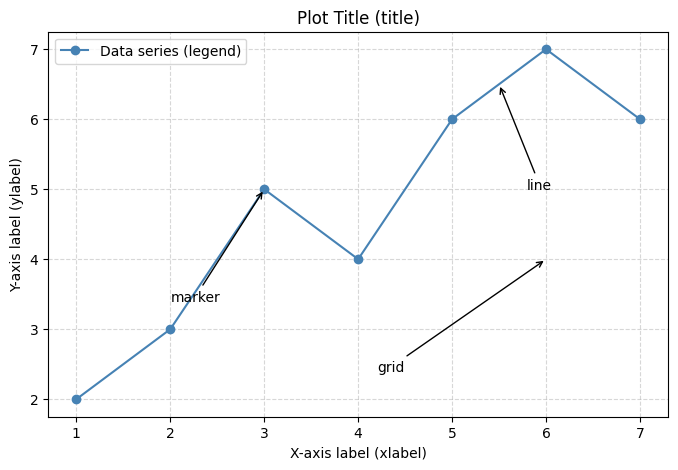
Anatomy of a Plot#
Matplotlib organizes a plot into two structures: the Figure (the whole image) and the Axes (the area where the data is drawn, along with its axes). Using the pyplot interface, the creation flow is almost always the same:
Prepare the data (lists or arrays);
Choose the chart type (
plt.plot,plt.bar,plt.scatter, …);Configure the title, axis labels, legend, and grid;
Display it with
plt.show()(or save it withplt.savefig).
The figure below identifies the main parts of a plot:
import matplotlib.pyplot as plt
import numpy as np

x = np.arange(1, 8)
y = np.array([2, 3, 5, 4, 6, 7, 6])

plt.figure(figsize=(8, 5))
plt.plot(x, y, marker='o', color='steelblue', label='Data series (legend)')
plt.title('Plot Title (title)')
plt.xlabel('X-axis label (xlabel)')
plt.ylabel('Y-axis label (ylabel)')
plt.legend(loc='upper left')
plt.grid(True, linestyle='--', alpha=0.5)

# Annotations pointing to parts of the plot
plt.annotate('marker', xy=(3, 5), xytext=(2.0, 3.4), arrowprops=dict(arrowstyle='->'))
plt.annotate('line', xy=(5.5, 6.5), xytext=(5.8, 5.0), arrowprops=dict(arrowstyle='->'))
plt.annotate('grid', xy=(6, 4), xytext=(4.2, 2.4), arrowprops=dict(arrowstyle='->'))

plt.show()
A First Plot#
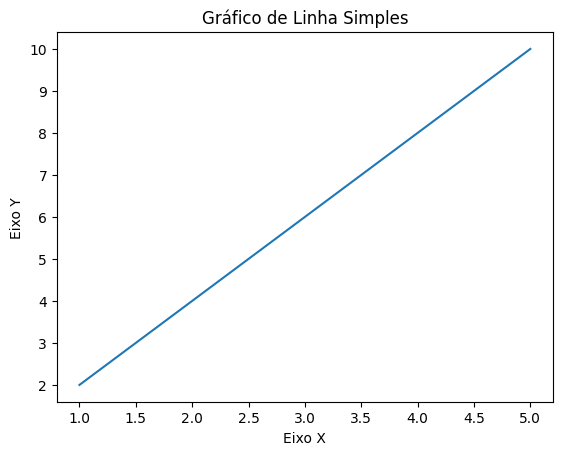
The example below applies this flow to create a simple line chart:
# Importing Matplotlib library
import matplotlib.pyplot as plt

# Defining data for X and Y axes
x = [1, 2, 3, 4, 5]
y = [2, 4, 6, 8, 10]

# Creating the line chart
plt.plot(x, y)

# Adding label to X axis
plt.xlabel('X Axis')

# Adding label to Y axis
plt.ylabel('Y Axis')

# Adding title to the chart
plt.title('Simple Line Chart')

# Displaying the chart
plt.show()
Line Chart: Cumulative Sales Over the Month#
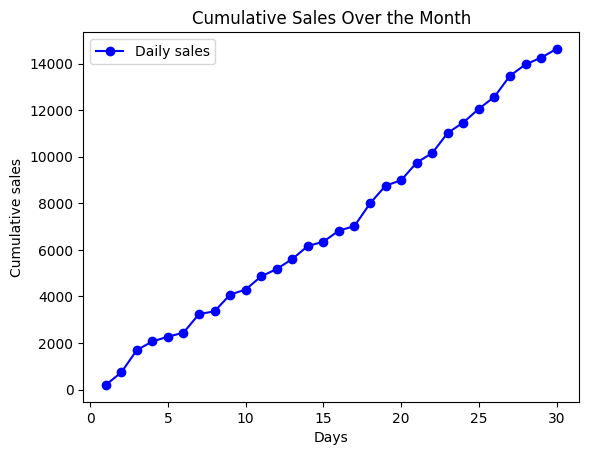
This example creates a line chart showing a store’s cumulative sales over 30 days. The NumPy library is used to generate fictitious data for illustration.
import matplotlib.pyplot as plt
import numpy as np

np.random.seed(42)

# Fictitious data: cumulative sales over 30 days
days = np.arange(1, 31)
sales = np.random.randint(100, 1000, size=30).cumsum()

# Line chart with markers
plt.plot(days, sales, marker='o', color='b', label='Daily sales')
plt.xlabel('Days')
plt.ylabel('Cumulative sales')
plt.title('Cumulative Sales Over the Month')
plt.legend()
plt.show()
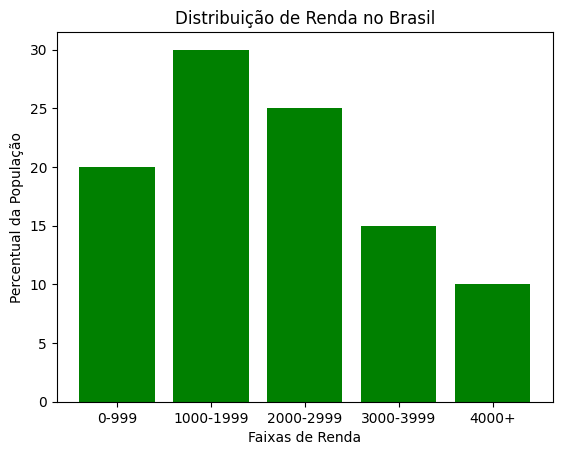
Bar Chart: Income Distribution in Brazil#
In this example, a bar chart is used to represent income distribution in Brazil. The data is dummy and represents percentages of the population in different income brackets.
import matplotlib.pyplot as plt

# Dummy data for illustration
income_brackets = ['0-999', '1000-1999', '2000-2999', '3000-3999', '4000+']
percentages = [20, 30, 25, 15, 10]

# Creating the bar chart
plt.bar(income_brackets, percentages, color='green')

# Adding labels and title
plt.xlabel('Income Brackets')
plt.ylabel('Percentage of Population')
plt.title('Income Distribution in Brazil')

# Displaying the chart
plt.show()
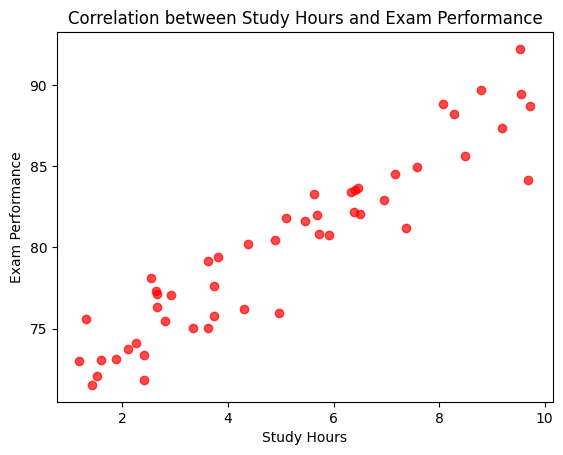
Scatter Plot: Correlation between Two Variables#
This example uses a scatter plot to visualize the correlation between two dummy variables: study hours and test performance.
import matplotlib.pyplot as plt
import numpy as np

np.random.seed(42)  # same figures on every run

# Dummy data for illustration
study_hours = np.random.uniform(1, 10, size=50)
exam_performance = 70 + 2 * study_hours + np.random.normal(0, 2, size=50)

# Creating the scatter plot
plt.scatter(study_hours, exam_performance, color='red', alpha=0.7)

# Adding labels and title
plt.xlabel('Study Hours')
plt.ylabel('Exam Performance')
plt.title('Correlation between Study Hours and Exam Performance')

# Displaying the chart
plt.show()
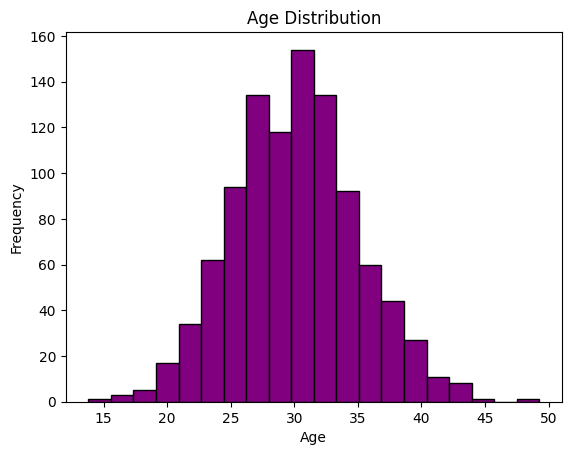
Histogram: Distribution of a Variable#
In this example, a histogram is used to represent age distribution in a sample of people.
import matplotlib.pyplot as plt
import numpy as np

np.random.seed(42)  # same figures on every run

# Dummy data for illustration
ages = np.random.normal(30, 5, size=1000)

# Creating the histogram
plt.hist(ages, bins=20, color='purple', edgecolor='black')

# Adding labels and title
plt.xlabel('Age')
plt.ylabel('Frequency')
plt.title('Age Distribution')

# Displaying the chart
plt.show()
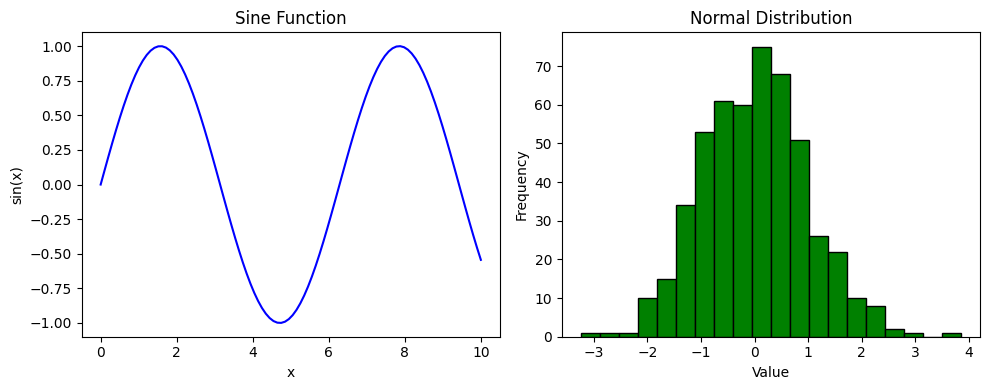
Multiple Plots: Subplots#
Often we want to display several plots side by side in a single figure. The plt.subplots(rows, cols) function creates a Figure and a grid of Axes; each Axes is configured independently with methods such as .plot(), .set_title(), and .set_xlabel().
import matplotlib.pyplot as plt
import numpy as np

np.random.seed(42)

# Creates a figure with 1 row and 2 columns of plots
fig, (ax1, ax2) = plt.subplots(1, 2, figsize=(10, 4))

# Left plot: line
x = np.linspace(0, 10, 100)
ax1.plot(x, np.sin(x), color='blue')
ax1.set_title('Sine Function')
ax1.set_xlabel('x')
ax1.set_ylabel('sin(x)')

# Right plot: histogram
ax2.hist(np.random.normal(0, 1, 500), bins=20, color='green', edgecolor='black')
ax2.set_title('Normal Distribution')
ax2.set_xlabel('Value')
ax2.set_ylabel('Frequency')

# Automatically adjusts spacing between the plots
plt.tight_layout()
plt.show()
Working with Images#
Matplotlib is not just for charts and plots; it is also a powerful tool for image manipulation and visualization.
import matplotlib.pyplot as plt
import matplotlib.image as mpimg

# Define the path to the local image
image_path = "ch7.jpeg" # Image in the same folder as the .ipynb file

# Read the image as a numpy array
img = mpimg.imread(image_path)

# Create a new figure
plt.figure(figsize=(10, 8))

# Display the image
plt.imshow(img)

# Add a title
plt.title("My Local Image")

# Remove axes
plt.axis('off')

# Show the figure
plt.show()

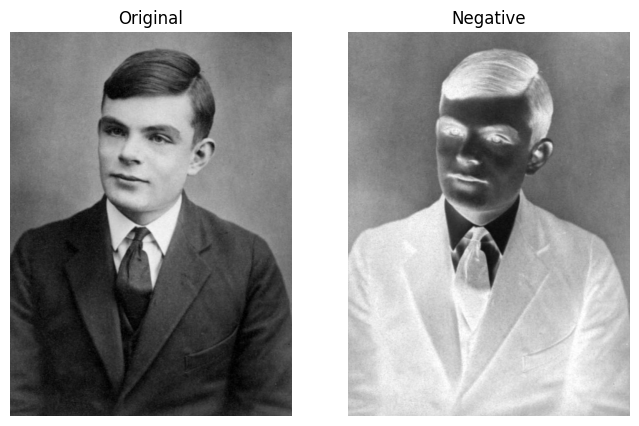
We can also manipulate an image, since Matplotlib represents it as a NumPy array. In the example below, we load a public domain photo of Alan Turing (one of the fathers of computing) and apply a negative effect, showing the original and the result side by side.
The image is available for download: alan_turing.jpg. Download it and save it in the same folder as your notebook to reproduce the example.

import matplotlib.pyplot as plt
import matplotlib.image as mpimg

# Reads the (grayscale) image located in the same folder as the notebook
image = mpimg.imread('alan_turing.jpg')

# Negative effect: invert the tones (the image is an array, so we just subtract)
negative = 255 - image

# Show the original and the negative side by side
fig, (ax1, ax2) = plt.subplots(1, 2, figsize=(8, 5))

ax1.imshow(image, cmap='gray')
ax1.set_title('Original')
ax1.axis('off')

ax2.imshow(negative, cmap='gray')
ax2.set_title('Negative')
ax2.axis('off')

plt.show()
Tip - Free-to-Use Images
When using images in your projects, prefer freely licensed content (public domain, Creative Commons, etc.). Wikimedia Commons hosts millions of free-to-use images. The Alan Turing photo above is in the public domain.
Saving Charts as Figures#
The Matplotlib library offers a straightforward way to save charts in various formats such as PNG, PDF, SVG, and JPEG. As an example, let’s create a scatter plot.
import matplotlib.pyplot as plt
import numpy as np

# Data for the scatter plot
x = [1, 2, 3, 4, 5]
y = [2, 4, 6, 8, 10]

# Adjust the color and size of points based on Y values
colors = np.arange(len(y))
sizes = [40 * val for val in y]

# Create a custom scatter plot
plt.scatter(x, y, c=colors, s=sizes, cmap='viridis', edgecolor='black', alpha=0.7, label='Example Points')
plt.colorbar(label='Y Values')
plt.xlabel('X Axis')
plt.ylabel('Y Axis')
plt.title('Didactic Scatter Plot')

# Add a trend line
plt.plot(x, np.poly1d(np.polyfit(x, y, 1))(x), color='orange', linestyle='--', label='Trend Line')

# Add legend
plt.legend()

# Add grid for better visualization
plt.grid(True)

# Save the scatter plot as a PNG file
plt.savefig('scatter_plot.png')

# Display the scatter plot
plt.show()
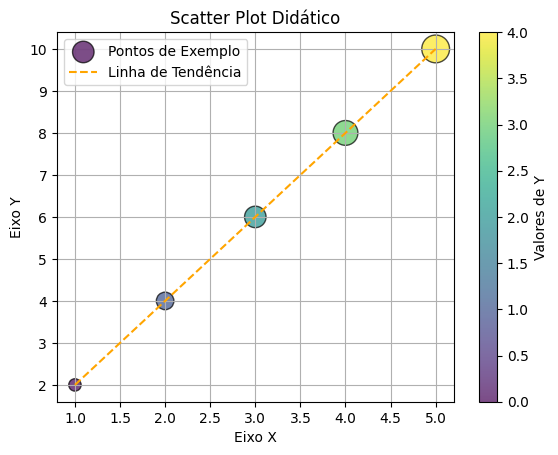
To save, we use the savefig() function, indicating the filename with the desired extension. For other formats, change the filename extension:
plt.savefig('scatter_plot.pdf')
plt.savefig('scatter_plot.svg')
plt.savefig('scatter_plot.jpg')
The default resolution will be used, but you can adjust it as needed with the dpi argument. This process offers an efficient way to preserve visualizations generated in Python for future use, sharing, or inclusion in documents and presentations.
Exercises#
Analyzing Temperature Collection
You are a data scientist working on a dataset of daily temperatures collected over a week. The temperatures were recorded in degrees Celsius and are organized in a NumPy array.
Data:
import numpy as np

temperatures = np.array([
    [25.5, 26.1, 27.8, 28.3, 27.9, 26.8, 25.9], # Sunday
    [24.8, 25.3, 26.5, 27.1, 26.7, 25.6, 24.9], # Monday
    [23.9, 24.5, 25.8, 26.4, 26.0, 24.9, 24.1], # Tuesday
    [24.2, 24.8, 26.1, 26.7, 26.3, 25.2, 24.4], # Wednesday
    [25.1, 25.7, 27.0, 27.6, 27.2, 26.1, 25.3], # Thursday
    [26.0, 26.6, 28.1, 28.7, 28.3, 27.2, 26.3], # Friday
    [25.4, 26.0, 27.5, 28.0, 27.6, 26.5, 25.7]  # Saturday
])
Your tasks are:
Calculate the average daily temperature for the week.
Find the maximum and minimum temperature of the week.
Calculate the difference between the maximum and minimum temperature for each day of the week.
# Test
Input: Consider the data presented in the problem description
Output:
Daily average temperature for the week:
Day 1: 26.90°C
Day 2: 25.84°C
Day 3: 25.09°C
Day 4: 25.39°C
Day 5: 26.29°C
Day 6: 27.31°C
Day 7: 26.67°C

Maximum temperature of the week: 28.70°C
Minimum temperature of the week: 23.90°C

Difference between maximum and minimum temperature for each day:
Day 1: 2.80°C
Day 2: 2.30°C
Day 3: 2.50°C
Day 4: 2.50°C
Day 5: 2.50°C
Day 6: 2.70°C
Day 7: 2.60°C
Sound Wave Analysis
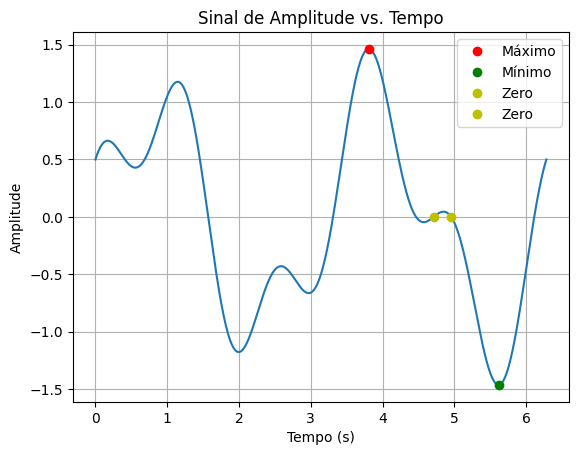
You are an audio engineer working on a sound wave analysis project. You have a dataset representing the amplitudes of a sound wave at different points in time. Your task is to analyze these data using NumPy mathematical functions.
import numpy as np

# Data: time in seconds and corresponding amplitudes
time = np.linspace(0, 2*np.pi, 1000)
amplitudes = np.sin(2*time) + 0.5*np.cos(5*time)
Tasks:
Calculate the maximum and minimum value of the amplitudes.
Find the time points where the amplitude is close to zero (use
np.wherewithnp.iscloseto consider a tolerance ofatol=1e-3).Calculate the total energy of the signal (sum of the squares of the amplitudes).
Round all results to 4 decimal places and print the results of each task.
Optionally, you can plot the charts using matplotlib to visualize the results.
# Test
Input: Use the data presented in the problem description.
Output:
Maximum amplitude: 1.4627
Minimum amplitude: -1.4628

Time points where the amplitude is close to zero:
4.7108 seconds
4.9561 seconds

Total signal energy: 624.6250
Averages and Standard Deviations Calculation
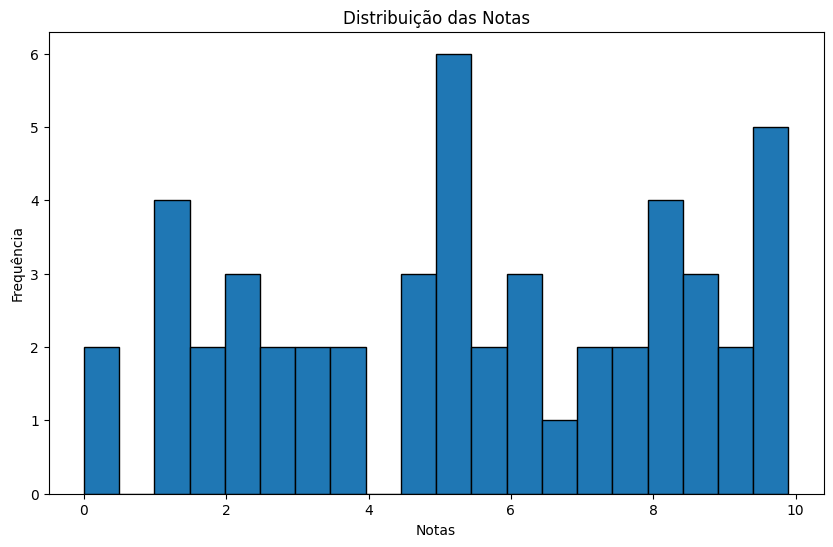
Develop a program that analyzes the grades of a class of students in a subject. The objective is to generate a basic statistical report that includes the mean, variance, and standard deviation of the students’ grades.
Implement a function using NumPy to calculate the following statistics:
Average of grades: The arithmetic mean of the grades.
Variance of grades: The measure of dispersion that indicates how spread out the grades are relative to the mean.
Standard deviation of grades: The square root of the variance, which provides a measure of grade dispersion relative to the mean.
Implement another function to print the final report in the following format:
“Mean of grades: X.XX”
“Variance of grades: X.XX”
“Standard deviation of grades: X.XX”
Where X.XX should be replaced by the calculated values, rounded to two decimal places.
Optionally, you can plot a histogram to visualize grade distribution using the matplotlib library.
# Test
Input:
6.3, 9.5, 1.7, 9.1, 8.2, 1.8, 0.4, 7.4, 4.6, 7.7, 8.1, 1.4, 3.8, 6.6, 7.6, 3.4, 3.8, 9.3, 9.9, 2.5, 6.3, 5.1, 5.4, 1.1, 4.5, 2.4, 8.7, 9.9, 2.0, 5.1, 8.0, 5.3, 1.0, 1.3, 8.5, 5.6, 4.7, 0.0, 6.0, 3.2, 2.2, 9.5, 9.7, 5.1, 5.6, 5.4, 8.7, 7.1, 2.6, 8.3
Output:
Mean: 5.43
Variance: 8.37
Standard deviation: 2.89
Algebraic Operations on Matrices
In this exercise, you will implement fundamental algebraic operations on matrices using the NumPy library. The goal is to consolidate the understanding of multiplication, sum, transposition, matrix inversion, and determinant calculation.
Instructions
Matrix Generation
Create two square matrices \(A\) and \(B\) of dimensions \(3 \\times 3\), filled with random integers between 1 and 10.
Define a random seed received as input to ensure reproducibility of results. Use the
numpy.random.seedfunction to configure the seed, followed bynumpy.random.randintto generate the matrices.
Algebraic Operations
a) Matrix Sum: Calculate the sum \(C = A + B\).
b) Matrix Product: Calculate the matrix product \(D = A \\cdot B\) (matrix multiplication).
c) Transposition: Find the transpose of matrix \(D\), denoted by \(D^T\).
d) Determinant: Calculate the determinant of \(D\) using
numpy.linalg.det.e) Matrix Inversion:
Check if \(D\) is invertible (determinant non-zero).
If so, calculate its inverse \(D^{-1}\) using
numpy.linalg.inv.Otherwise, inform that \(D\) does not have an inverse.
Final Report Implement a function to display the results of the operations in a report formatted as follows:
Report:
Matrix A: \( \\begin{bmatrix} a_{11} & a_{12} & a_{13} \\\\ a_{21} & a_{22} & a_{23} \\\\ a_{31} & a_{32} & a_{33} \\end{bmatrix} \)
Matrix B: (Format similar to \(A\)).
Matrix C (A + B): Sum result.
Matrix D (A \cdot B): Matrix multiplication result.
Matrix D Transposed: Result of \(D^T\).
Determinant of D: Determinant value.
Inverse of D: Show \(D^{-1}\) if it exists, or display “Matrix not invertible.”
Example Output
import numpy as np

# Test with seed 42
np.random.seed(42)
A = np.random.randint(1, 11, (3, 3))
B = np.random.randint(1, 11, (3, 3))

print("Matrix A:")
print(A)
print()
print("Matrix B:")
print(B)
Output:
Matrix A:
[[ 7  4  8]
 [ 5  7 10]
 [ 3  7  8]]

Matrix B:
[[5 4 8]
 [8 3 6]
 [5 2 8]]

Matrix C (A + B):
[[12  8 16]
 [13 10 16]
 [ 8  9 16]]

Matrix D (A @ B):
[[107  56 144]
 [131  61 162]
 [111  49 130]]

Matrix D Transposed:
[[107 131 111]
 [ 56  61  49]
 [144 162 130]]

Determinant of D: 1768.00

Inverse of D:
[[-0.0045 -0.1267  0.1629]
 [ 0.5385 -1.1731  0.8654]
 [-0.1991  0.5503 -0.4576]]
Hints
Use
np.iscloseto compare the determinant with zero, avoiding numerical precision errors.Test the code with different seed values to verify the robustness of the implementation.
Use
np.dotor the@operator to perform matrix multiplication.